Web Embedded Checkout v2 can collect customer details during card, Apple Pay, and Google Pay payments. The SDK submits the newly collected values with the payment, so you do not need to read wallet contact data or append these values to the payment request yourself.
Customer-detail collection is disabled by default.
Collection has two controls, and both must be configured:
- In the xMoney Dashboard, open the relevant site and select the customer fields required by your inline checkout.
- In the SDK configuration, set each payment method that should collect those fields to
true.
In the Dashboard, use the site's Form Fields settings. Select the fields under Personal Information and Address that you want Embedded Checkout to collect.
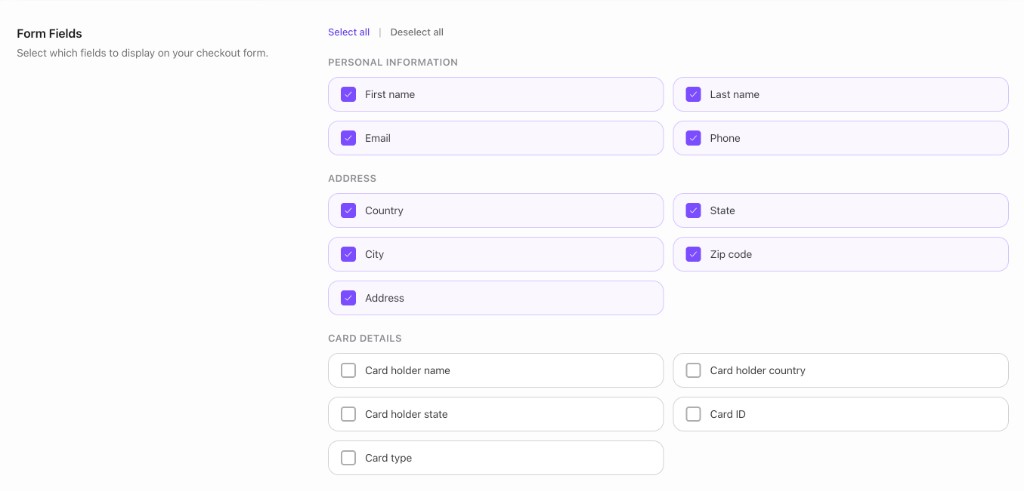
The Card Details section configures separate card-related fields and is not controlled by the SDK's customerDetails configuration.
Test and live sites have separate configuration. Make sure you update the site that belongs to the public key used by your checkout.
The SDK configuration enables collection per payment method; it does not select individual fields. The fields selected for the site in the Dashboard determine what the SDK displays or requests.
Add the top-level customerDetails object to paymentForm(), paymentCard(), or a standalone wallet configuration.
customerDetails: {
  card: true,
  applePay: true,
  googlePay: true,
}
Enable only the methods where you need customer data:
| Property | Applies to | Behavior |
|---|---|---|
card | paymentForm() and paymentCard() | Renders personal-detail fields with the card form and validates them before submission. |
applePay | Apple Pay in paymentForm() and applePay() | Requests the configured contact fields in the Apple Pay sheet. |
googlePay | Google Pay in paymentForm() and googlePay() | Requests the configured email and billing-contact fields in the Google Pay sheet. |
Setting a value to false or omitting it leaves collection disabled for that payment method.
const paymentForm = await window.XMoney.paymentForm({
  container: 'xmoney-payment-form',
  publicKey,
  orderPayload,
  orderChecksum,
  customerDetails: {
    card: true,
    applePay: true,
    googlePay: true,
  },
  paymentMethods: {
    applePay: { enabled: true },
    googlePay: { enabled: true },
  },
  onPaymentComplete: handlePaymentResult,
  onError: handlePaymentError,
})
customerDetails.applePay and customerDetails.googlePay collect data only when the corresponding wallet is also enabled and available.
For a card-only component:
const card = await window.XMoney.paymentCard({
  container: 'payment-card',
  publicKey,
  orderPayload,
  orderChecksum,
  customerDetails: {
    card: true,
  },
})
For standalone wallet buttons:
const applePay = await window.XMoney.applePay({
  container: 'apple-pay',
  publicKey,
  orderPayload,
  orderChecksum,
  customerDetails: {
    applePay: true,
  },
})

const googlePay = await window.XMoney.googlePay({
  container: 'google-pay',
  publicKey,
  orderPayload,
  orderChecksum,
  customerDetails: {
    googlePay: true,
  },
})The site configuration can request name, email, phone, and billing-address data.
- If either first name or last name is configured, the card form displays one Full name field.
- If any billing-address field is configured, the card form displays the complete address section: country, region, street address, city, and postal code.
- Card customer-detail fields are required and validated before the SDK submits the payment.
- Apple Pay requests name and postal address as billing contact data, and email and phone as contact data.
- Google Pay requests email and the required billing-address data from the wallet.
- The SDK sends only fields enabled for the site. If a wallet does not return an enabled value, that value is omitted rather than blocking xMoney payment submission.
When customer details are active, onValidation and validate() can include these field names:
[
  'fullName',
  'email',
  'phoneCountry',
  'phone',
  'country',
  'region',
  'address',
  'city',
  'postalCode',
]
If you use a custom card submit button, call validate() before submit() so card and customer-detail errors are handled together.
Collect only the information needed for the payment and your business requirements. Tell customers why you collect their data and handle it according to your privacy policy and applicable data-protection requirements.
Card customer fields are rendered in the xMoney payment iframe, while Apple Pay and Google Pay collect contact data in their wallet sheets. Your page should not attempt to read payment-component data.
If no customer fields appear or no wallet contact data is requested:
- Confirm that the required fields are enabled for the correct site in the xMoney Dashboard.
- Confirm that the matching
customerDetailsproperty istrue. - For wallets, confirm that the payment method is enabled and available.
- Confirm that the SDK uses the public key for the site you configured.
If the SDK cannot load the site's field configuration, customer-detail collection is skipped and the payment can still proceed.