xMoney provides native checkout SDKs for iOS, Android, React Native, and Flutter. All four use the same integration model: your backend creates a signed order, the app presents a payment surface, and the SDK returns a PaymentResult.
Current releases:
- iOS: 1.1.0
- Android: 1.1.0
- React Native: 1.1.0
- Flutter: 0.0.3, built on the iOS and Android SDKs 1.1.0
iOS
Integrate with Swift Package Manager or CocoaPods. Use Payment Sheet, Payment Element, or Apple Pay in UIKit and SwiftUI.
Android
Install from Maven Central. Use Payment Sheet, Payment Element, or Google Pay with Compose or an Activity.
React Native
Install from npm and use native payment views from React Native New Architecture apps, including Expo development builds.
Flutter
Install from pub.dev and use native payment views as Flutter widgets on iOS and Android.
| Surface | Use it when | Who owns the Pay button? |
|---|---|---|
| Payment Sheet | You want the fastest path to a complete native checkout. | The SDK |
| Payment Element | The payment form should sit inside your own checkout layout. | The SDK, or your app through confirm() |
| Apple Pay / Google Pay | You want a standalone express-wallet experience. | The native wallet |
Payment Sheet includes the platform wallet. Payment Element does not add the wallet module automatically: link XMoneyApplePay beside the iOS element or com.xmoney:googlepay beside the Android element when you want a wallet button. The React Native and Flutter packages include both platform wrappers, but each wallet renders only on its supported platform.
Use a native SDK when you want native controls, lifecycle handling, accessibility, and wallet presentation. Use Mobile WebView integration when you already have one web checkout that must be shared by web, iOS, and Android. Use Hosted Checkout when redirecting to an xMoney-hosted payment page is a better fit.
The native SDKs are not WebView wrappers. Card collection uses native SDK views; web content may still appear during an issuer's 3DS challenge.
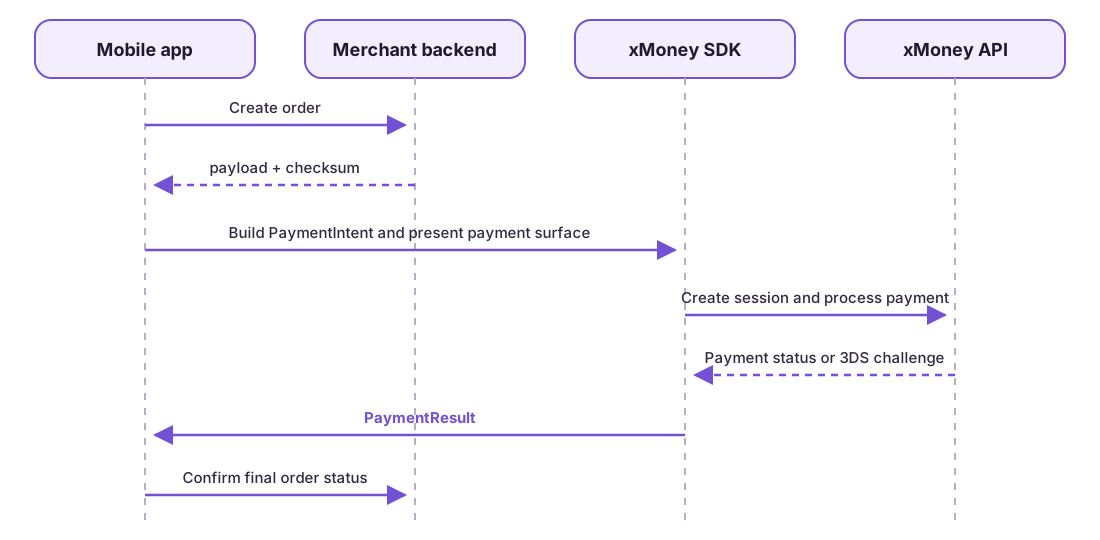
- Your backend creates the order and signs it with the private key.
- The app receives
payloadandchecksumand builds aPaymentIntent. - The app presents Payment Sheet, mounts Payment Element, or opens a wallet.
- The SDK obtains the payment session, collects payment details, and handles 3DS when required.
- The SDK returns
complete,failed, orcanceled. - Your backend confirms the final transaction status before fulfillment.
The app should contain only a publishable key such as pk_test_... or pk_live_.... Never ship a private or secret API key. Create and sign orders on your backend.
For a server-side signing example, see Create the order on your backend.
Use Swift Package Manager:
.package(
    url: "https://github.com/xMoney-Payments/xmoney-ios.git",
    from: "1.1.0"
)
Link XMoneyPaymentSheet for the drop-in flow, or select XMoneyPaymentElement and XMoneyApplePay separately.
With CocoaPods:
pod 'XMoneyPaymentSheet', '1.1.0'Every surface reports the same three terminal outcomes:
- Complete: payment completed; the transaction is available on the result.
- Failed: the attempt failed; use the SDK-authored error code and message.
- Canceled: the shopper dismissed or left the flow.
Signed order checksums are one-shot after a payment attempt starts:
| Outcome | Is the order consumed? | Next action |
|---|---|---|
| Complete or failed | Yes | Request a new signed order and create a new PaymentIntent. |
| Canceled after Pay or 3DS started | Yes | Request a new signed order. |
| Payment Sheet closed before Pay | No | Present the same intent again. |
| Wallet dismissed before authorization | No | Present the same intent again. |
For Payment Element and wallet buttons, replace the consumed intent or unmount the surface. Use isOrderConsumed and isInteractionEnabled where exposed to control your app UI.
PaymentResult updates the app experience; it is not the sole source of truth for fulfillment. Confirm final status through your backend, using webhooks or a trusted API check.
All four SDKs follow the same contract for loading state and order updates.
Ready. Each mounted surface emits ready once, after the form or wallet button has first drawn. Order updates do not emit it again. A first load that fails shows an SDK-authored failure state and delivers a failed result instead of ready. End your own loading indicator on either one.
Keep the surface mounted. Do not replace Payment Element or a wallet button with a loader while it loads or while the order changes. Keep it laid out at its real size, even under your own loading cover, so it can draw.
Update the order in place. When the cart, amount, or currency changes, rebind the mounted surface with a new signed order. Pay stays disabled (isInteractionEnabled is false) until the new order is bound. Each SDK also accepts a callback that creates the order. Pay locks as soon as you call it, so a fast tap cannot charge the previous order while your server is creating the next one. The call returns the bound PaymentIntent.
| Platform | Update with a callback that creates the order |
|---|---|
| iOS | try await embedded.updateOrder { ... } |
| Android | embedded.updateOrder { ... } |
| React Native | await elementRef.current?.updateOrder(async () => ...) |
| Flutter | await controller.updateOrderWith(() async => ...) |
The Apple Pay and Google Pay APIs and wallet buttons offer the same callback form.
Failures during an update:
- Your callback fails. The previous order stays bound and payable, and the error is returned to you.
- A newer update replaces an older one. The newest call always wins. The older call ends with a cancellation error:
CancellationErroron iOS,UpdateOrderSupersededon Android, andSUPERSEDED_UPDATE_ORDERin React Native and Flutter. Ignore it. Keep order-creation endpoints idempotent. - Binding fails after an order was already bound. The surface emits
updateFailedand does not call the result handler. Pay stays locked on the previous order until a later update succeeds. Tell the shopper and call the update again. - A charge is in flight. Passing the same order is a no-op. Passing a different order fails with "payment in progress":
PaymentError.paymentInProgresson iOS,PaymentError.PaymentInProgresson Android, andPAYMENT_IN_PROGRESSin React Native and Flutter.
All four SDKs support:
- Card collection and saved cards
- Payment Sheet and embedded Payment Element
- Apple Pay on iOS and Google Pay on Android
- SDK-owned or merchant-owned Pay buttons for Payment Element
- Order updates without remounting Payment Element
- 3DS challenges, including hand-off to the shopper's bank app
- Light, dark, and custom appearance
- English, Greek, Romanian, Bulgarian, Hungarian, and Polish
- Optional cardholder name verification when enabled for the site
For complete API references and runnable samples, see the iOS SDK, Android SDK, React Native SDK, and Flutter SDK repositories.